
How to scrape a website to Excel without writing code
Copy-pasting rows is slow, Power Query and IMPORTHTML choke on JavaScript and logins, and coding a scraper is overkill for a one-off job. Here is the no-code middle path, from any page to a clean spreadsheet.
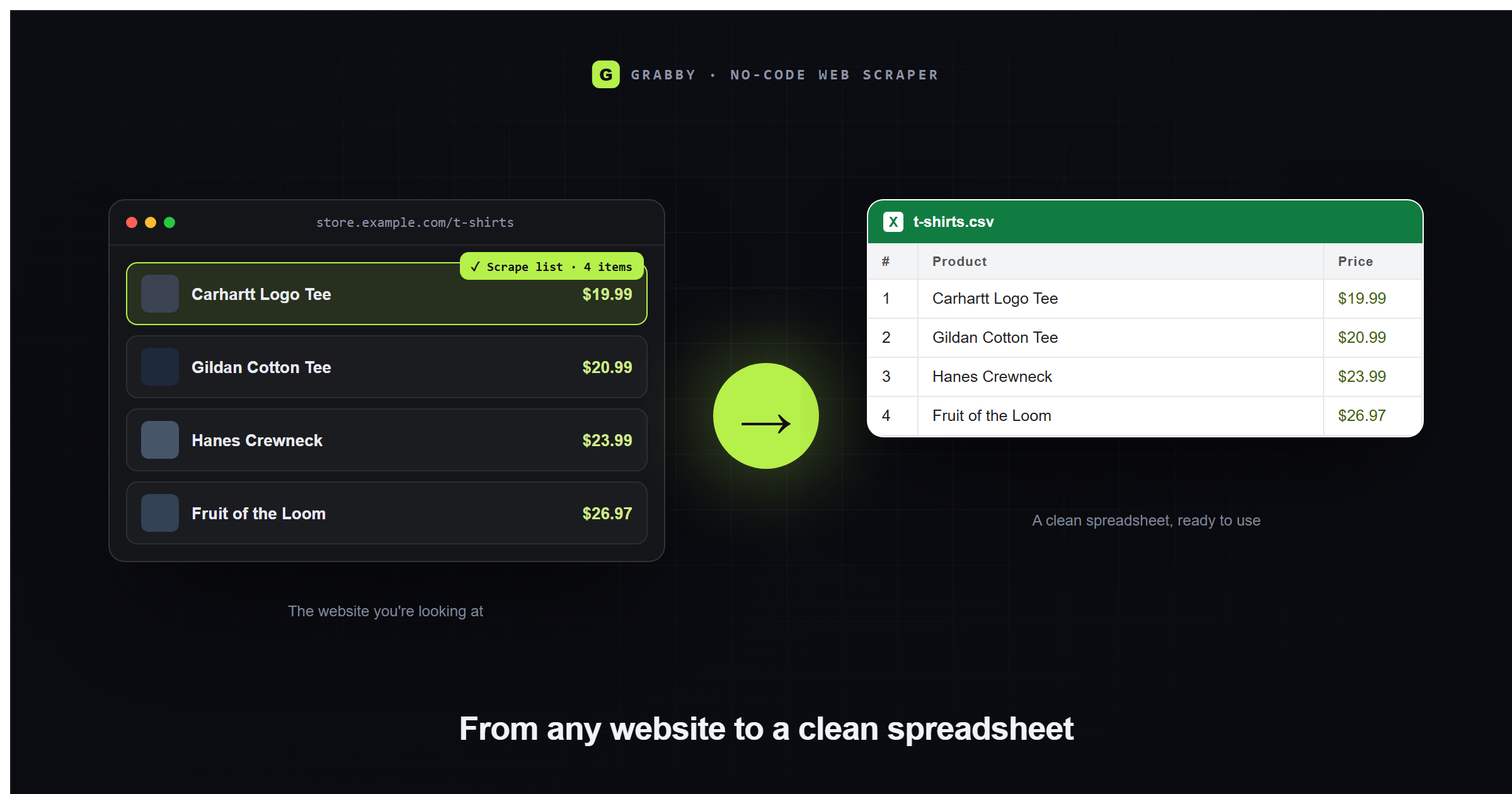
You found a page with exactly the data you need (a product list, a directory, search results, a table of stats) and now you need it in a spreadsheet. That last step is more annoying than it should be. Copy-paste drags formatting and ads along with it and loses the underlying structure. Excel’s Power Query and Google Sheets’ IMPORTHTML sound like the “proper” way to do it, until you try them on a real site and hit a wall: JavaScript-rendered content, a login, or a “Next” button they simply can’t click. Writing a Python scraper solves all of that, but it is a lot of setup for a job you need done in the next five minutes.
There is a middle path: a free, no-code web scraper Chrome extension that reads the page the same way you do, in your own browser, and turns it into an Excel, CSV, or Google Sheets file in a few clicks. This guide walks through why the usual tools fall short, then shows the whole workflow with Grabby, start to finish.
The real problem: your data is on the page, not in a file
Every method for getting web data into a spreadsheet is really solving the same problem in a different place. A browser renders a page by running JavaScript, checking who you are logged in as, and fetching more rows as you scroll or click. A spreadsheet formula or a script, on the other hand, usually only sees the raw HTML a server hands back before any of that happens. When the two don’t match, which is the case on most modern websites, the import comes back empty, wrong, or half-finished.
That is the whole reason a browser-based, point-and-click scraper works where formulas and simple connectors don’t: it is looking at the same fully-loaded, logged-in page you are, not asking a server for a stripped-down version of it.
Every method, compared
Here is how the common options actually stack up, honestly, including where each one breaks:
| Method | JS-rendered pages | Logged-in pages | Pagination / scroll | Skill needed |
|---|---|---|---|---|
| Manual copy-paste | Works, but loses structure | Yes | Manual, page by page | None, but slow and error-prone |
| Excel Power Query (From Web) | No, can’t run JavaScript | Simple form logins only | No, one URL per query | Comfortable with Excel |
| Google Sheets IMPORTHTML / IMPORTXML | No, static HTML only | No | No, one page per formula | Writing a formula |
| Python scraper (requests/BeautifulSoup) | No without adding a browser tool | Yes, with manual session handling | Yes, you code it | Programming |
| No-code point-and-click (Grabby) | Yes, reads the rendered page | Yes, uses your logged-in session | Yes, built in | None |
Power Query’s web connector is genuinely useful for the narrow case it was built for: a stable, public page with a plain HTML table and nothing dynamic on it. IMPORTHTML and IMPORTXML are the same trade, quick when they work, silent or broken the moment a site loads its list with JavaScript, sits behind a login, or splits results across pages, since both only ever see the static HTML a server returns and can’t click, scroll, or hold a session. A point-and-click scraper closes that gap by working from the browser tab itself.
The no-code workflow, step by step
Here is the whole process with Grabby, a free web scraper Chrome extension that runs entirely in your browser. No account, no API keys, nothing installed on a server.
1. Open Grabby on the page
Navigate to the page with your data and click the Grabby icon in your toolbar. A side panel opens next to the page itself. Because Grabby reads the page exactly as you see it, it works on JavaScript-rendered content and logged-in pages that trip up formulas and connectors. You don’t need to log out, find a hidden API, or locate a “print view.”
2. Let it auto-detect, or point at the data yourself
Choose Scrape List. Auto-detect usually finds the main list or table on the page the moment it opens. If you would rather choose exactly what gets captured, pick Select the list and hover over the data. Grabby highlights the whole repeating structure, whether that is a grid of product cards, a directory of rows, or an HTML table with headers, and a single click grabs every item. There are no CSS selectors or XPath to write either way.
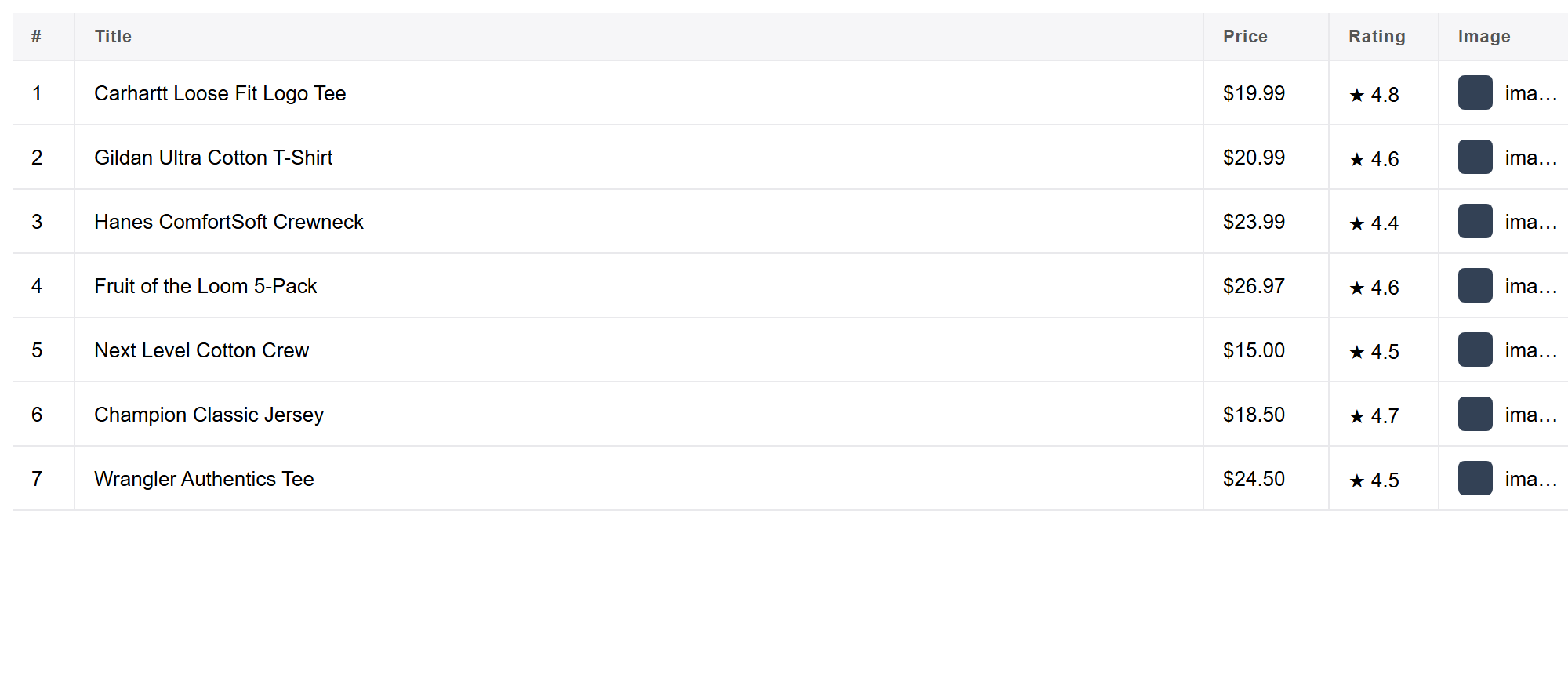
Grabby works out the columns for you (titles, prices, links, ratings, dates, images, and so on), and if the source is a table, it keeps the original columns intact instead of flattening everything into one field. You get a live preview of how many rows and columns it found before you commit to anything.
3. Get every page, not just the first
Most lists and tables run longer than one screen. Before you run the scrape, tell Grabby how this particular site loads more data:
- Pagination: numbered pages or a “Next” button. Point at the button once and Grabby clicks through each page itself.
- Auto-scroll: for infinite feeds that load more content as you scroll down.
- Load more: for a “Load more” button that appends rows without navigating away.
- Just this page: when everything you need is already on screen.
Set a page limit if you want one, hit Start, and watch the row count climb as Grabby walks the list and stitches every page into one dataset. On sites that load content lazily, turn on Accurate mode so each item scrolls into view before it is read, so nothing comes back blank.
4. Pull extra fields from each detail page (optional)
If the fields you need only live on each item’s own page (a full description, specs, or contact details), give Grabby the column of links from your list and it opens each one, reads the extra fields, and merges them back into the same table. That turns a bare list into a complete dataset without a second tool.
5. Clean the data before you export
Results land in an editable table, and this is where a good scrape becomes a good spreadsheet. Rename columns, delete rows you don’t want, remove empty or duplicate rows and columns, hide fields you don’t need, and sort — all before export, so the file lands ready to use rather than needing a cleanup pass afterward.
6. Export to Excel, CSV, JSON, or straight to Google Sheets
Click Export and pick a format. Choose CSV or Excel (TSV) and the file opens directly in Excel, or copy the whole table and paste it straight into a Google Sheet, no import wizard needed. JSON and Markdown are there too, for anywhere else the data needs to go. Everything runs and saves locally, so nothing is uploaded anywhere.
Advanced cases and troubleshooting
- A column is missing or mixed up. Re-run Select the list and click a slightly different part of the item. The exact element you click can change which fields Grabby groups together. You can also add or rename a column by hand in the editable table afterward.
- Some rows have blank fields. This is almost always lazy loading, images or text that only render once the browser scrolls them into view. Turn on Accurate mode so each row is scrolled into view before it is captured, and re-run the scrape.
- A list or table spans many pages. Make sure Pagination, Auto-scroll, or Load more is selected (not “Just this page”) before you hit Start, and set a page limit high enough to cover the whole thing. Grabby stitches every page into a single table automatically.
- Numbers show up as text and won’t sum or sort correctly. This happens after almost any import into Excel or Sheets, not just scraping, because prices and quantities often arrive with symbols, commas, or leading characters attached. In Excel, select the column and use Data → Text to Columns (or click the small warning flag and choose Convert to Number). In Google Sheets, select the column and use Format → Number, or add a helper column with
=VALUE(A2). - A run stops partway through. Very fast, very large runs can occasionally trip a site’s own rate limiting. Lower the page limit and run it again, a moment later.
What people use this for
- Tracking competitor prices across a store’s catalog on a weekly cadence.
- Turning a business directory or association member list into a spreadsheet of leads.
- Pulling job postings from a careers page for a hiring dashboard.
- Building a research dataset from search results, rankings, or listings.
- Archiving a table of stats, prices, or specs before a site redesigns and moves it.
Save any of these as a recipe in Grabby so you can re-run it in one click later, handy for price tracking or a report you rebuild every week.
Scrape responsibly
Grabby works on virtually any site you can browse, but scraping is not a free-for-all. Many sites restrict automated collection in their terms, and personal data carries privacy obligations. Review the terms of the sites you use and comply with the law. (This is a how-to guide, not legal advice.)
Frequently asked questions
Is it really free? Yes. Grabby is free while in early access, with every feature unlocked and no sign-up required.
Does it export to real Excel files, or do I need to convert something first? You export straight to CSV or Excel (TSV), which open directly in Excel with no conversion step, or copy the table and paste it straight into Google Sheets.
Will it work on infinite-scroll or paginated sites? Yes. Choose Auto-scroll, Pagination, or Load more before you start, and Grabby collects rows across every page automatically.
Can it get data from a page I need to be logged into? Yes. Grabby reads the page exactly as your browser renders it, session and all, so it works on logged-in dashboards, private groups, and members-only pages that IMPORTHTML and Power Query’s web connector can’t reach.
Why does Excel’s Power Query or Google Sheets’ IMPORTHTML fail on some sites? Both only read the raw HTML a server sends back. If a site builds its list or table with JavaScript after the page loads, or if it needs a login, there is nothing in that raw HTML for either tool to find, so they return blank or an error.
Why did some fields come back blank? Usually lazy loading, meaning images or text that only render once they scroll into view. Turn on Accurate mode so Grabby scrolls each item into view before reading it, which fixes the vast majority of blank fields.
Can it follow links to pull more detail per row? Yes. Point Grabby at a column of links (product pages, profiles, listings) and it opens each one to pull extra fields, then merges everything back into a single table.
Some numbers came in as text and won’t sum. How do I fix that? This happens in Excel and Sheets after almost any import, not just scraping. Select the column, and in Excel use Data → Text to Columns (or the small error flag → Convert to Number). In Sheets, use Format → Number, or wrap the column in =VALUE().
Keep going
If your data needs to land in a live spreadsheet rather than a downloaded file, see how to scrape a website straight to Google Sheets. For a worked, real-site example, try scraping Amazon product data to Excel or pulling business leads from Google Maps — the same select-paginate-clean-export flow covered above, applied to a specific site.