
How to scrape a website to Google Sheets (free, no code)
You want web data in a live, shareable Google Sheet. Here is every real way to get it there — IMPORTHTML, add-ons, Apps Script, copy-paste — and the free, no-code route that works on almost any page.
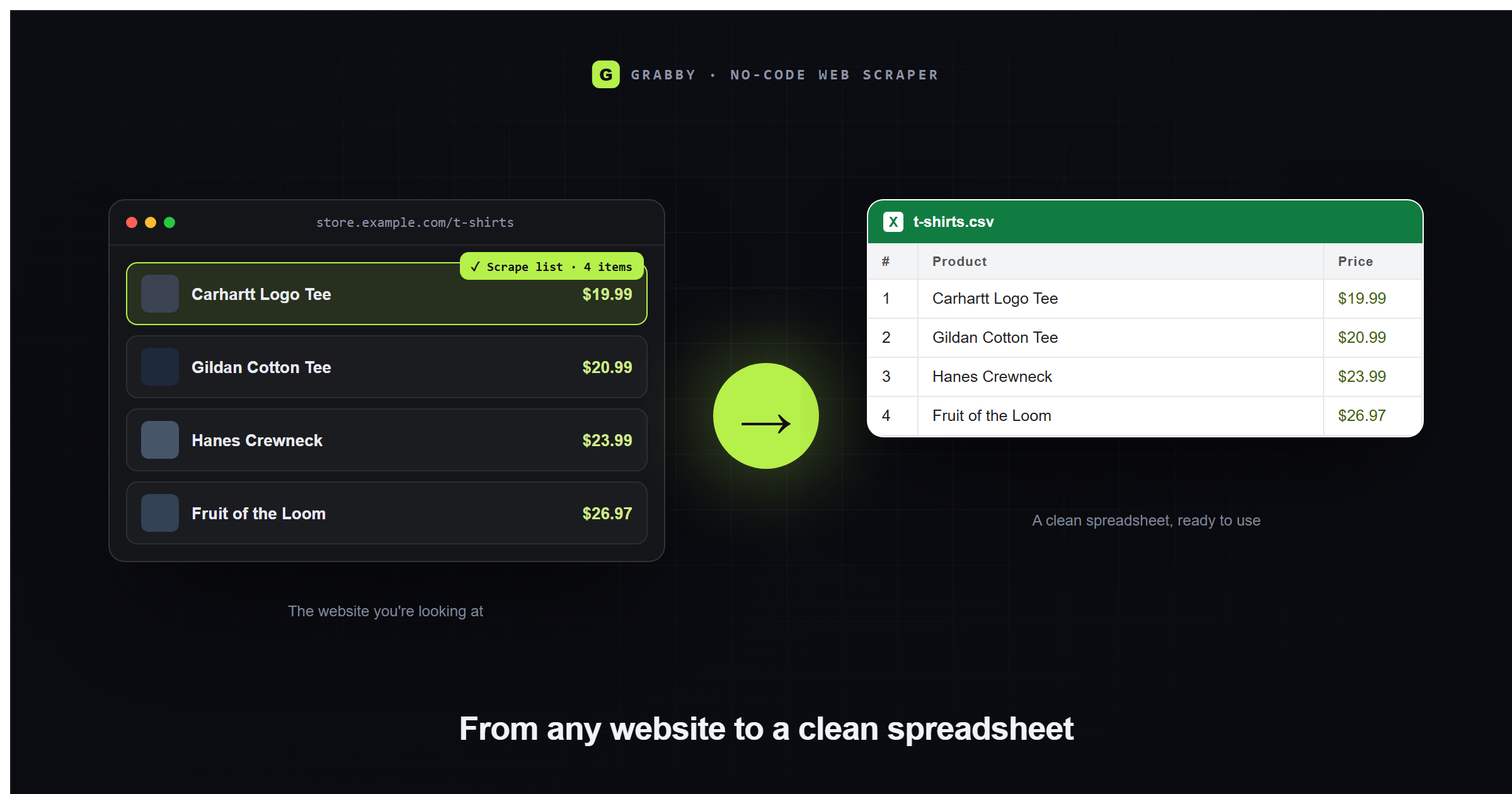
You have a web page full of the exact data you need — a product list, a directory, search results, a table — and you want it in Google Sheets: sortable, filterable, shareable with your team. Copying it cell by cell is painful, and most “website to Sheets” tutorials point you at a paid add-on or a fragile =IMPORTHTML() formula that breaks the moment a site uses JavaScript. There is a faster, free way, and it helps to see all the options side by side before you pick one.
This guide compares every real route from a web page to a Google Sheet, then walks through the fastest one: scraping the page with the free Grabby web scraper Chrome extension and dropping the result straight into Sheets, no code and no add-on required.
Every way to get web data into Google Sheets
There is no single “best” method — it depends on the page and how often you need fresh numbers. Here is what each option actually handles:
| Method | What it actually handles | Effort | Best for |
|---|---|---|---|
| IMPORTHTML / IMPORTXML | Static HTML tables and lists on public pages only. No JavaScript rendering, no login, no pagination or infinite scroll, and Sheets rate-limits how often the formula refreshes. | Low — one formula | A single simple, static table you want referenced live |
| Paid Sheets add-ons | Similar fetch-and-parse approach with a friendlier UI, some handle JavaScript-rendered pages and offer scheduled refresh, for a monthly fee. | Low-medium, plus a subscription | Recurring pulls from a handful of similar pages |
| Google Apps Script | Full control — fetch a URL and parse the HTML or a JSON API yourself. Still sees raw server HTML by default, not what JavaScript renders, unless you replicate the page’s own API calls. | High — you write and maintain code | Custom, repeatable pulls if you’re comfortable scripting |
| Copy-paste | Exactly what’s on screen, one page at a time. Easy to drag in merged cells, stray whitespace or hidden columns by accident. | Low, but manual | A handful of rows, once |
| No-code scrape (Grabby), then paste or import | Reads the page like a browser: JavaScript content, infinite scroll, pagination, and logged-in pages included. Produces a clean table to copy or import. | Low — point-and-click, a couple of minutes | Real lists, dozens to thousands of rows, from almost any site |
For a plain static table on a simple page, IMPORTHTML is genuinely the quickest option and worth trying first. The moment the site uses JavaScript, sits behind a login, paginates results or loads more items as you scroll — which covers most stores, directories, maps and dashboards today — it returns a blank cell or a #N/A error, and a scrape-then-import workflow is the reliable fallback.
The Grabby workflow: from any page to a Google Sheet
Here is the whole process, start to finish.
- Install the free extension. Add Grabby from the Chrome Web Store. No account, no API key — everything in this guide is on the free plan.
- Open the page with your data. A store category, a Google Maps search, a directory, a table of stats — anything with a repeating list. Scroll once so the first screen has loaded.
- Select the list. Click the Grabby icon, choose Scrape List, click Select the list, then click any one item. Grabby highlights the whole repeating set and one click captures it all — no CSS selectors, no XPath — and figures out the columns for you.
- Grab every page, if there is more than one. Choose Pagination for a “Next” button, Auto-scroll for an infinite feed, or Load more for a “show more” button. Set a sensible limit and hit Start.
- Clean it up. Results land in an editable data table. Remove empty or duplicate rows, rename columns, and drop anything you don’t need, so what lands in Sheets is already tidy.
Into Sheets, two ways
- Copy & paste (fastest). In Grabby’s data table, choose Export → Copy, open a new Google Sheet, click cell A1 and paste. The columns land in the right cells, ready to sort and filter.
- CSV import. Choose Export → CSV, then in Google Sheets go to File → Import, upload the file, and pick an import location — Create new spreadsheet, Insert new sheet, Replace current sheet, or Append to current sheet if you’re adding to an existing pull. Good when you want a repeatable, shareable file rather than a clipboard paste.
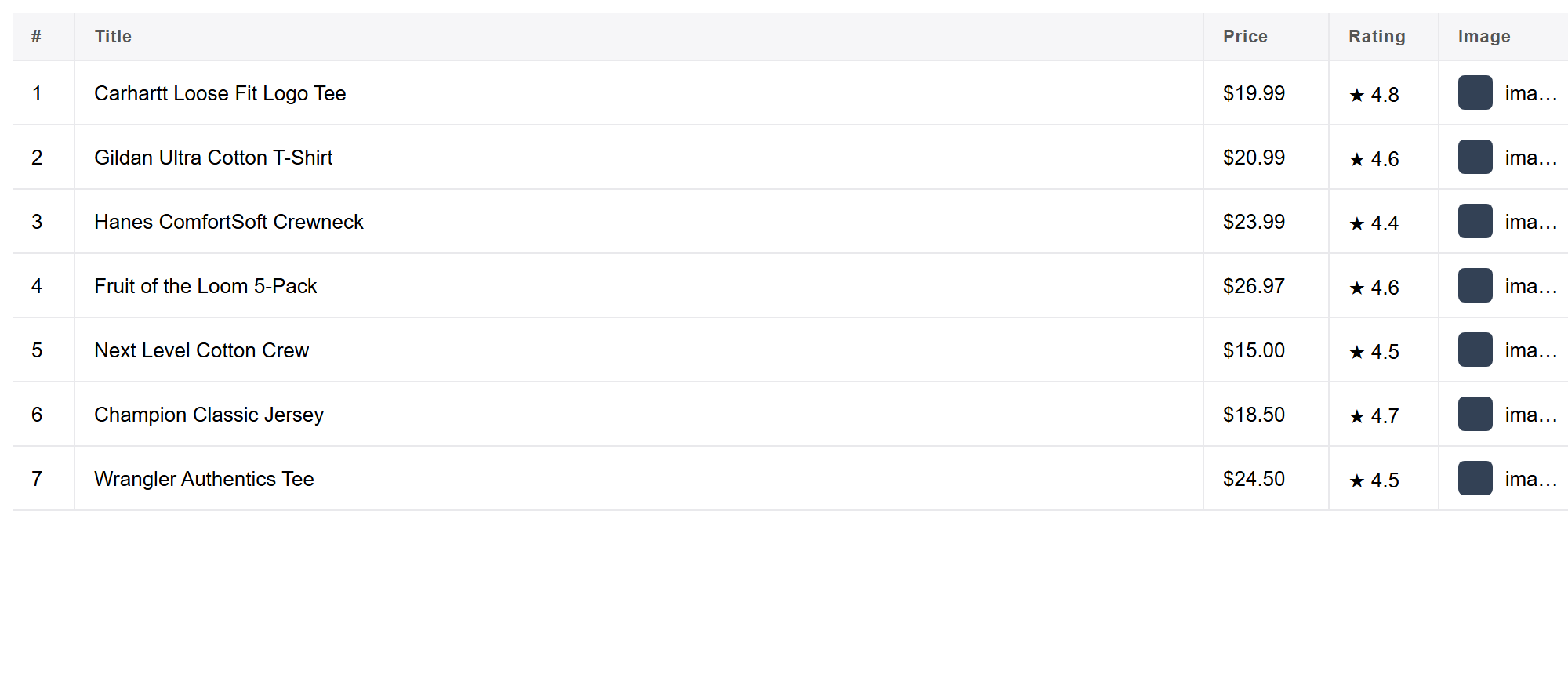
That’s it: web data in a shareable Google Sheet you can sort, filter and build on. Because Grabby runs locally, nothing is uploaded to a server — the data goes from your browser straight into your own sheet.
Because the sheet is a normal Google Sheet, everything you already know still applies: share it with your team, set view or edit permissions, wrap the range in a Table or named range, or build a chart or pivot table straight off it. There’s nothing scraper-specific about the sheet itself once the data lands — it behaves exactly like a sheet you typed by hand, just without the typing.
Keep it fresh: snapshot vs. live formula
It’s worth being clear-eyed about what “live” means here, because the two approaches behave very differently:
- IMPORTHTML/IMPORTXML is genuinely live — Sheets re-fetches the page periodically and the cells update on their own. That’s a real advantage, but only on the narrow set of static, public, JavaScript-free pages the formula can read, and it can silently break the moment the site changes its markup.
- A Grabby export is a snapshot. It’s accurate at the moment you scrape it, and you decide when to refresh by re-running it and pasting over the old range. For price tracking, lead lists, competitor research and most reporting, a controlled snapshot is usually preferable anyway — you don’t want a dashboard number changing mid-meeting.
A practical middle ground: keep each pull on its own dated tab so you have a history to compare, or overwrite a single “current” tab and log the pull date in a cell next to it. Either way, re-running a saved scrape takes a couple of clicks, so “refresh weekly” is realistic without any scheduling tool.
Cleaning tips once the data is in Sheets
- Keep the header row. Grabby’s column names become your sheet headers — rename them in the data table first so Sheets is labelled correctly from the first paste.
- Numbers and prices as text. If a price or count column imports as text (left-aligned, ignored by SUM), select it and use Format → Number, or add a helper column with
=VALUE(). - Dates as text. Wrap them in
=DATEVALUE(), or use Data → Split text to columns if a date and time are stuck together. - Stray whitespace. A quick
=TRIM()column catches the invisible spaces that sneak in from scraped text and quietly break exact-match lookups. - Refresh later. To update the sheet, re-run the scrape and paste over the range, or keep each pull on its own tab for a history you can compare.
What people use this for
- Price and competitor tracking. Pull a category or pricing page into a sheet, then re-run it weekly and drop the new numbers into the next column so you can watch how prices move over time.
- Lead lists and directories. Turn a business directory, association listing, or Google Maps search into a contact sheet you can hand straight to sales or outreach.
- Content and SEO audits. Collect titles, headers, word counts or metadata across a set of pages into one sheet instead of opening each URL by hand.
- Listings research. Real estate, job boards, or marketplaces — pull listings into Sheets so you can filter and sort by price, location, or date rather than scrolling a site.
- Quick research and journalism. Get a table of figures into a sheet you can chart, cross-reference, or share with an editor, without waiting on a developer to build something custom.
Troubleshooting: why IMPORTHTML or IMPORTXML come back blank
If you’ve tried the formula route first and gotten a blank cell or a #N/A error, it’s almost always one of these, and the fix is usually to scrape the page instead rather than debug the formula:
- The content is added by JavaScript after the page loads. IMPORTHTML only sees the raw HTML the server sends first, not what scripts render afterward, which is how most stores, dashboards and search results build their pages.
- The page needs a login. Sheets fetches the URL anonymously, so anything behind authentication comes back empty.
- You pointed it at the wrong table index. A page can have several
<table>elements, and IMPORTHTML numbers them in source order, which doesn’t always match what you see visually. - You hit the refresh rate limit. Sheets throttles how often import formulas re-fetch a given URL; hammering refresh can return a stale or empty result for a while.
Frequently asked questions
Is it really free? Yes. Grabby is free while in early access, and Google Sheets is free too — nothing here needs a paid add-on.
Do I need a Sheets add-on? No. Copy-paste or a CSV import is all it takes — nothing to install inside Sheets.
Why not just use IMPORTHTML or IMPORTXML? They only read simple static tables and lists on public pages, and break on JavaScript, logins, pagination and infinite scroll — most modern sites. Grabby reads the page you see, so it works where the formulas can’t.
Will the sheet auto-update? A pasted or imported sheet is a snapshot. IMPORTHTML/IMPORTXML are the only truly live option, and only on the pages they support. Otherwise, re-run the scrape and paste again to refresh.
Does it work on pages behind a login? Yes — Grabby reads what you see in your own browser session, logged in or not.
What about Apps Script? It works, but you’re writing and maintaining code, and it still only sees raw server HTML by default, not JavaScript-rendered content.
How do I fix numbers or dates that import as text? Use Sheets’ Format → Number, or =VALUE() / =DATEVALUE() helper columns.
Can I pull a paginated or infinite-scroll list into one sheet? Yes — set Pagination, Auto-scroll, or Load more before you start, and every page lands in one table.
Scrape a specific site into Sheets
The same flow works everywhere. For worked examples and the underlying export options, see our guides to scraping any website to Excel and scraping a table from any website — then copy the result straight into Google Sheets, or use File → Import with the CSV export.