
How to scrape Amazon product data and prices to Excel (free, no code)
Copy-pasting Amazon cards is slow and coding a scraper with proxies is overkill. Here's the free, no-code middle path, plus the legal notes, the API alternative, and how to keep a price-tracking sheet current.
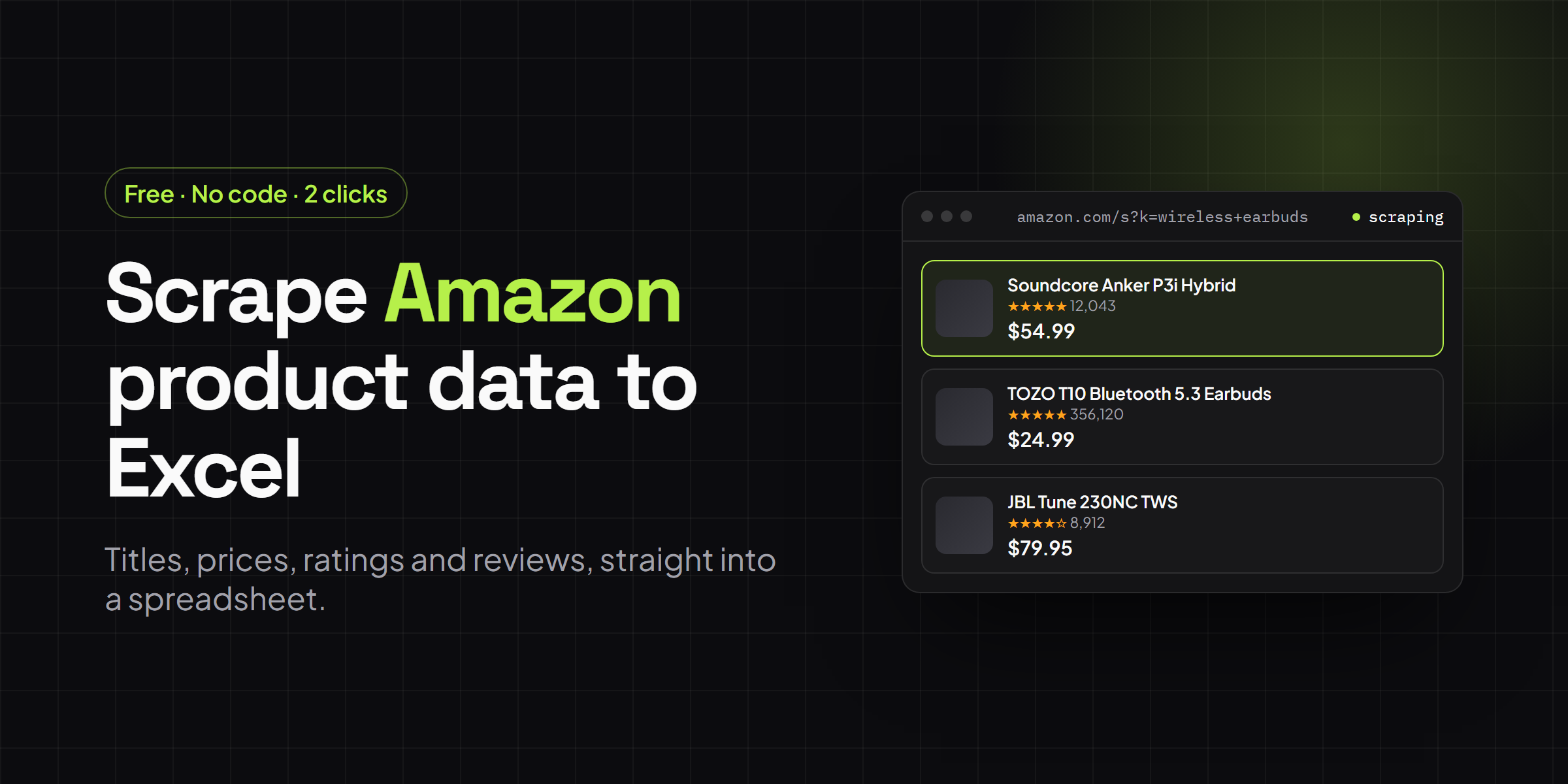
You have an Amazon search full of exactly the products you want (a category to track, a batch of competitors, a shortlist for a product-research spreadsheet) and now you need it out of the browser and into rows and columns: titles, prices, star ratings, review counts, images, and links. Copying each card by hand is slow and error-prone once you are past a handful of products, and standing up a Python scraper with rotating proxies is a lot of infrastructure for what is usually a research task, not a production pipeline.
This guide covers how to scrape Amazon product data into Excel, CSV, or Google Sheets end to end: what Amazon’s terms actually say about automated collection, how the no-code, hand-coded, official-API, and paid-service approaches compare, and a detailed walkthrough using the free Grabby web scraper Chrome extension, including the parts people usually skip: paginating properly, following product links for fields that only live on the detail page, and keeping a price-tracking file current over time.
Is it legal to scrape Amazon?
Amazon’s Conditions of Use are explicit: the license to use the site excludes “any use of data mining, robots, or similar data gathering and extraction tools.” That is a real clause you agree to by using amazon.com, and Amazon does enforce it. It watches for scraping at scale, issues cease-and-desist letters, and has taken legal action against companies it considers abusive, including a widely reported 2025 lawsuit against an AI company it accused of scraping and auto-purchasing on its site.
None of that makes casual, personal scraping a crime. US courts have drawn a line between breaking into a system, which is illegal under the Computer Fraud and Abuse Act, and simply reading data a page already shows any visitor. The Ninth Circuit’s hiQ Labs v. LinkedIn ruling found the latter is not a CFAA violation. What you are exposed to instead is Amazon’s own contract: it can rate-limit you, show you a CAPTCHA, or, in extreme cases, restrict the account you are signed into.
In practice, a browsing session where you open pages yourself and collect a few hundred rows for research carries very different risk than a script firing thousands of requests an hour. Keep volumes reasonable, don’t republish product images or full review text as your own content, don’t scrape personal buyer or seller information, and treat this as a research tool rather than a resale-data business. This is general information, not legal advice. Read Amazon’s Conditions of Use yourself before scraping at any real volume.
Four ways to get Amazon data into a spreadsheet
There is more than one way to turn an Amazon search into rows and columns. Which one makes sense depends on how often you need the data, how much of it, and whether you’d rather spend ten minutes or ten hours.
| Approach | Best for | Effort | Cost | Watch-outs |
|---|---|---|---|---|
| No-code tool (Grabby) | One-off or repeated manual research, no dev resources | Minutes, point, click, export | Free | No scheduling or CAPTCHA-solving yet, and you drive the browser |
| Custom script (Python, BeautifulSoup, Scrapy) | Developers with custom logic or a large, repeated job | Hours to days, plus upkeep | Free tool, but your time, plus proxies at scale | Breaks when Amazon changes markup. Needs headless rendering and IP rotation to avoid blocks |
| Product Advertising API | Active Amazon Associates with an affiliate use case | Apply, get approved, integrate | Free, but gated behind affiliate sales | Requires qualifying sales to get and keep access. License restricts how long you can cache data |
| Paid scraping / proxy service | High-volume, ongoing production pipelines | Low, call their API | Usage-based, recurring | Ongoing bill, and you still build the ingestion and cleanup pipeline yourself |
For most one-off and recurring research jobs (price checks, competitor tracking, a shortlist for a client), the no-code route below covers what the other three are built for, without the infrastructure. The rest of this guide walks through it step by step.
What you’ll need
- Google Chrome, Microsoft Edge, or Brave.
- The free Grabby extension. No account, no API key, no proxies, and it runs entirely in your browser.
- An Amazon search results page for whatever you want to collect.
Step 1: Install Grabby (free)
Add Grabby to your browser from the Chrome Web Store. There is nothing to sign up for and nothing to configure. Everything in this guide works on the free plan.
Step 2: Open your Amazon search and filter first
Go to Amazon and search for what you want, for example wireless earbuds, and you will land on a results page such as amazon.com/s?k=wireless+earbuds. Apply Amazon’s own filters before you scrape anything (price range, Prime eligibility, brand, customer rating, department) because Grabby captures whatever the page is showing, and a well-filtered search is a cleaner dataset with less cleanup afterward. Scroll down once so the whole first page of products has fully rendered.
Step 3: Select the product list
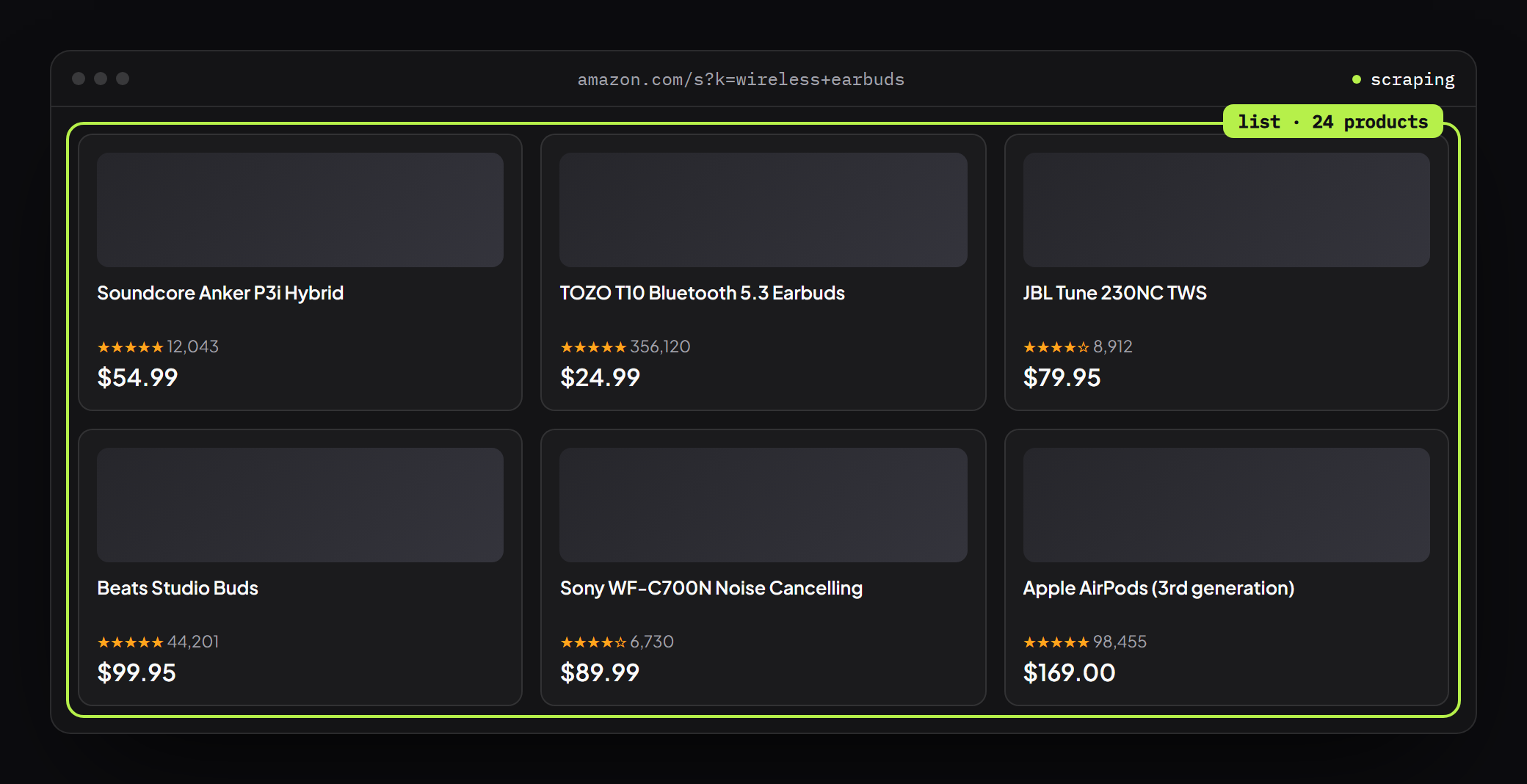
Click the Grabby icon to open its side panel, then choose Scrape List. On a supported site like Amazon you will also see a one-click template for the search results, so you can skip straight to the data. Otherwise click Select the list and click any one product card. Grabby highlights the entire repeating set of products, and a single click grabs them all. No CSS selectors, no XPath.
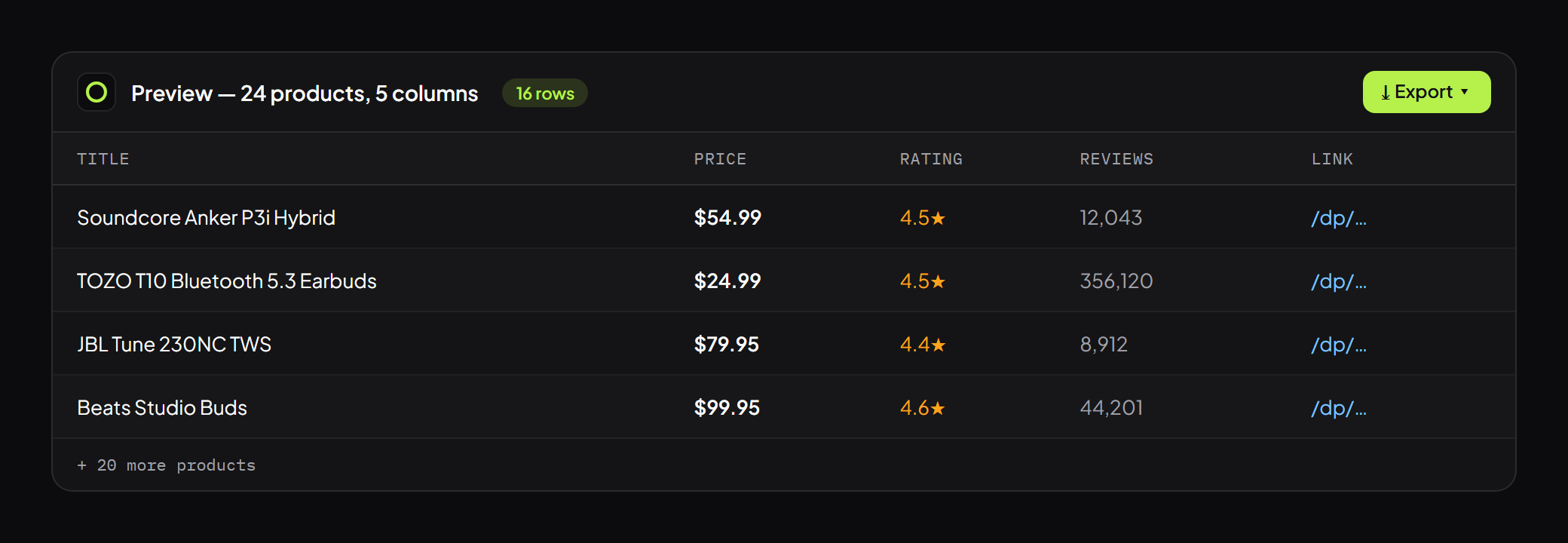
Grabby figures out the columns for you: title, price, star rating, review count, product image, and the link to each listing. You get a live preview of how many products and columns it found, worth a glance, since Amazon interleaves “Sponsored” placements in with organic results and both share the same card layout.
Install Grabby free and follow along
Step 4: Page through every result, not just the first page
Amazon spreads a search across many pages, showing a couple dozen products per page and capping how many pages it will hand you for a given query. Before you run the scrape, tell Grabby how to page through them:
- Pagination: point at Amazon’s Next button once, and Grabby clicks through each results page for you.
- Just this page: when the first page is all you need.
Set a sensible maximum number of pages, hit Start, and watch the row counter climb as Grabby walks each page and collects every product. To keep things friendly with Amazon, don’t run dozens of pages back to back. A handful at a time is plenty for most research, and if a search is very broad, narrow it with filters first rather than trying to pull everything at once.
Follow product links for the fields that only live on the detail page
Need brand, the bullet-point description, availability or stock status? Those aren’t on the search card. Give Grabby the column of product links and it will open each one and pull those extra fields, then merge them back into your table — the difference between a list of products and a full dataset. It is worth noting that Amazon has made full review text harder to pull anonymously over the past year, so treat detail-page scraping as reliable for spec-type fields rather than for harvesting entire review bodies. Ratings and review counts, by contrast, are already sitting on the search page and don’t require a detail-page visit at all.
Step 5: Clean and sort the data
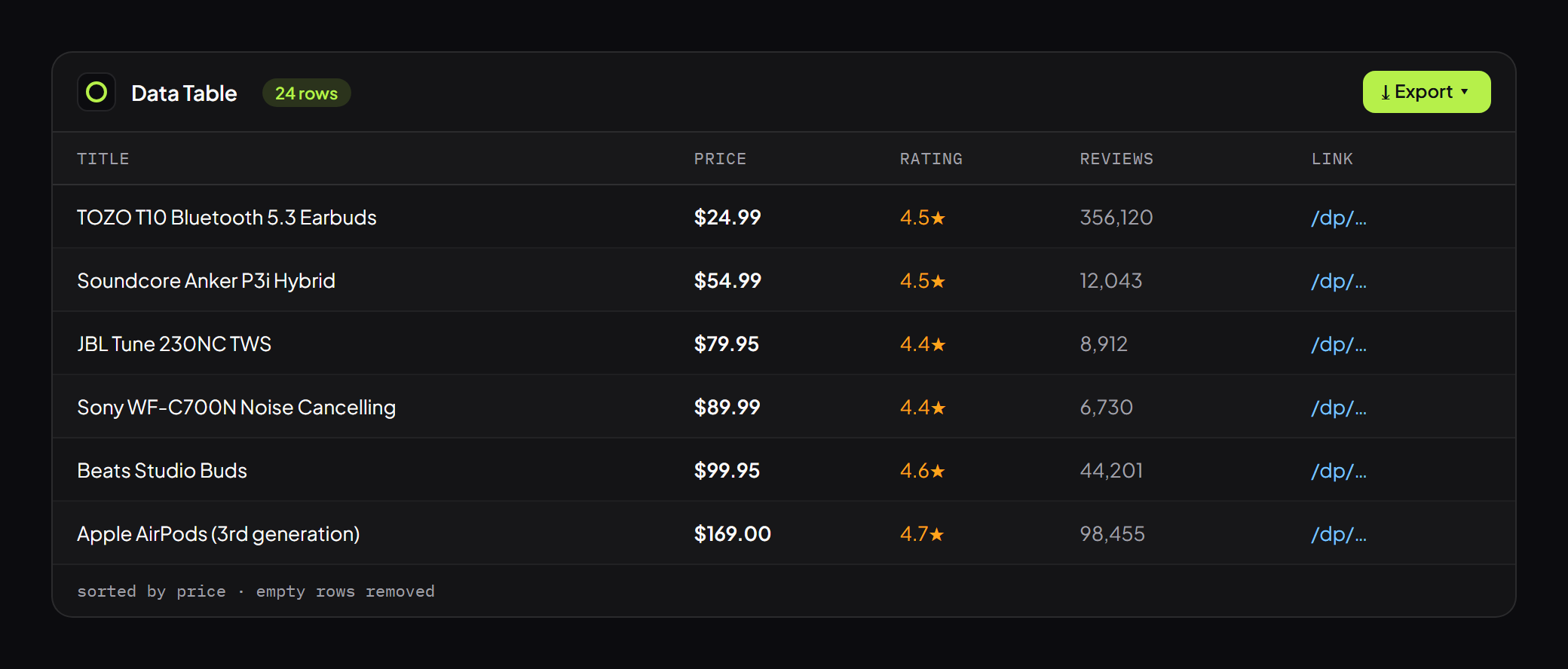
Your results open in an editable data table. This is where a good scrape becomes a good spreadsheet. Sort by price to find the cheapest options, remove empty or duplicate rows (the same product sometimes shows up twice, once as a sponsored slot and once organically), rename columns, and hide any columns you don’t need — all before you export. Everything here is non-destructive, so you can tidy the file until it is exactly what you want.
Step 6: Export to Excel, CSV, JSON, or Google Sheets
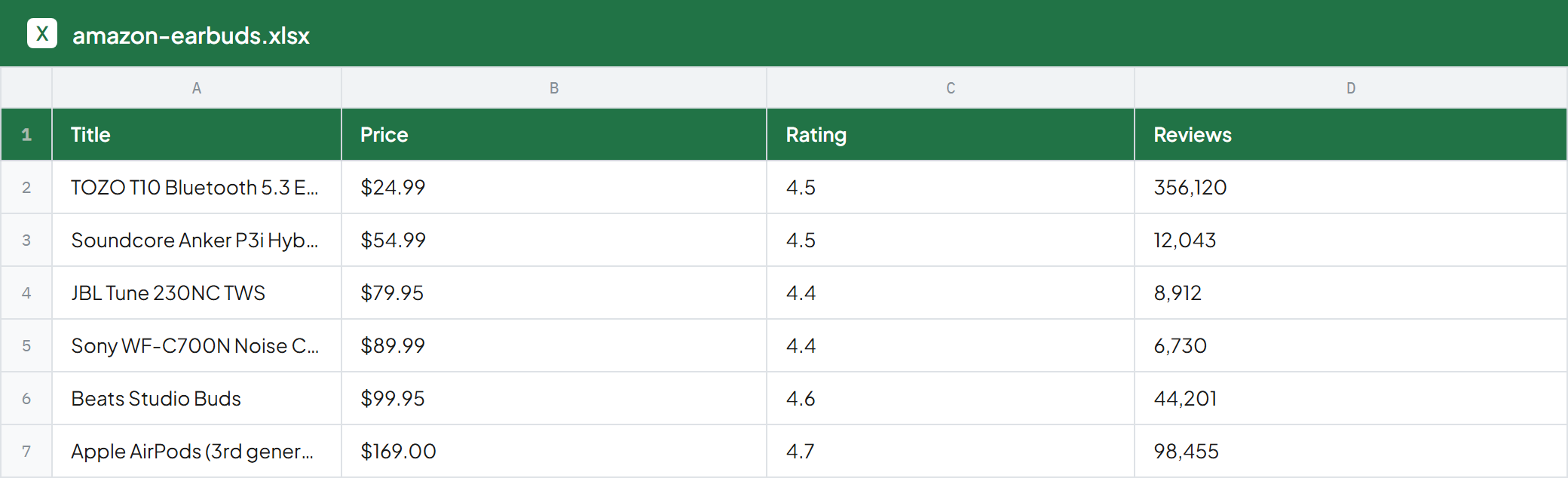
Click Export and choose your format. Pick CSV or Excel and open the file directly in Excel, export JSON if you need the data somewhere else, or copy the whole table and paste it straight into Google Sheets. Everything is saved locally, so the file is yours and nothing is uploaded.
Advanced: deduping, cleaning prices, and tracking changes over time
A raw scrape is a starting point, not a finished dataset. A few habits make the difference between a table you skim once and a spreadsheet you actually reuse:
- Dedupe by product link, not by title. The same listing can appear once as a sponsored slot and once organically, and titles are sometimes truncated differently between the two. The product link (or the ASIN inside it) is the reliable unique key.
- Normalize price text. Strip the currency symbol and thousands separators so prices sort and sum correctly, and decide how to handle variant ranges like “$19.99–$34.99”, either take the low end or split it into a min and max column.
- Parse the rating separately from the review count. “4.5 out of 5 stars” and “(2,341)” are two different numbers doing two different jobs — one column for the numeric rating, one for review count, so you can sort or filter on either.
- Set a refresh cadence for price tracking. Re-run the same scrape daily or weekly, export each run with a dated filename or a Date column, then compare against the previous file with a pivot table or VLOOKUP. Grabby doesn’t schedule runs automatically yet, so this is a manual re-run, but once your selection is set up, repeating it takes under a minute.
What people use this for
- Competitor price monitoring. Track a set of competing ASINs and see who moves price first.
- Dropshipping and retail arbitrage research. Shortlist products, pull pricing and review signals, and compare margins before committing.
- Comparison spreadsheets. Build a private, sortable view across brands or categories that Amazon’s own filters don’t offer.
- Market research. Pull pricing and rating distributions for a category as a starting dataset for further analysis.
- Catalog seeding. Get baseline titles, images, and descriptions into a spreadsheet before importing them into your own system.
Troubleshooting
- Wrong or missing columns? Re-select the list, or use the column tools to add the field Grabby missed.
- Pagination stops early? Choose Pagination and point at Amazon’s Next button manually so Grabby knows exactly what to click.
- Prices look blank? Scroll the page once so all cards render, then run the scrape again.
- Hit a CAPTCHA? You are moving too fast for Amazon. Run fewer pages and give it a moment between runs.
Frequently asked questions
Is it really free? Yes. Grabby is free while in early access, with every feature unlocked and no sign-up.
Is it legal to scrape Amazon? Amazon’s Conditions of Use technically prohibit automated data collection, but courts have found that reading publicly visible data isn’t a hacking crime under the CFAA. The realistic risk is rate-limiting or a CAPTCHA, not a lawsuit, if you keep volumes reasonable and don’t republish copyrighted content. This isn’t legal advice.
Does Amazon block this? Grabby reads the page you already loaded in your normal browser session, so it isn’t firing the automated requests that anti-bot systems look for. Very large, rapid runs can still trigger a CAPTCHA, so keep page counts reasonable.
Can I scrape Amazon ratings and review counts? Yes, both are captured as columns automatically from the search results. Full review text has gotten harder to access anonymously since Amazon tightened review-page access, so treat detail-page pulls as best for specs, not full reviews.
Can I get fields that only show on the product page, like brand or stock status? Yes. Give Grabby the column of product links from your scrape and it will open each one and pull those extra fields, merging them back into the same row.
Should I use the Amazon Product Advertising API instead? Only if you’re already an active Amazon Associate. The API requires an approved affiliate account with qualifying sales history, is scoped for affiliate linking rather than open research, and restricts how long you can store the data it returns.
Can I export Amazon data to Google Sheets? Yes, copy the table and paste it straight into a sheet, or export CSV or Excel and import it.
Will it work on other stores like eBay or Walmart? Yes. The same point-and-click method works on eBay, Walmart, and virtually any site with a product list.
Scrape any other site the same way
Amazon is just one example. The same select, paginate, clean, and export flow works on any website with a repeating list or table. See our guide to scraping eBay listings to Excel, the general version for any website to Excel, or scraping straight into Google Sheets.
That’s your Amazon data in a spreadsheet, free and without code. Install Grabby and turn any Amazon search into Excel in two clicks.