
How to scrape a table from any website to Excel (free, no code)
You want one table off a web page in a spreadsheet, columns intact, nothing mangled. Here is the free, no-code way, including the tables IMPORTHTML and Power Query flatly can't touch.

Tables are everywhere — pricing pages, sports stats, financial data, product specs, rankings, schedules. And getting just one of them into a spreadsheet, columns intact, is oddly hard. Copy-paste drags in fonts and stray formatting and can silently drop a column. =IMPORTHTML() sounds tailor-made for the job, until it hits a table built with JavaScript, a login, or more than one page, and returns nothing at all. Excel’s Power Query is more capable, but it has the same blind spot: it reads the HTML a server sends back, not the table your browser actually renders.
This guide is specifically about getting one HTML table — not a whole list of products, a single structured grid — off any page and into Excel, CSV, or Google Sheets, without writing code, using the free Grabby web scraper Chrome extension. It also goes deep on exactly where IMPORTHTML and Power Query stop working, so you know when to reach for something else.
Why one table is harder than it looks
A table on a web page is not always a plain HTML <table> tag anymore. Plenty of “tables” you see today — pricing grids, leaderboards, comparison charts — are actually built from <div> rows styled to look like a table, or assembled by JavaScript after the page loads. Both look identical to you in the browser. Neither is visible to a tool that only reads the raw HTML a server returns before any of that JavaScript runs, which is exactly what IMPORTHTML and Power Query’s From Web connector do. So a table can be perfectly readable on screen and completely invisible to the formula built to grab it.
Every way to get a table into a spreadsheet, compared
| Method | Keeps columns intact | JS-built tables | Multi-page tables | Effort |
|---|---|---|---|---|
| Copy-paste | Often, but merged cells and hidden columns break it | Whatever is on screen only | Manual, one page at a time | Low effort, tedious for big tables |
| Google Sheets IMPORTHTML | Yes, for a plain HTML table | No | No, one formula per page | One formula, if it works |
| Excel Power Query (From Web) | Yes, for a plain HTML table | No | No, one query per page | A short wizard, if it works |
| Python (pandas.read_html) | Yes, for a plain HTML table | No, without adding a browser tool | Yes, you code the loop | Programming |
| No-code point-and-click (Grabby) | Yes, reads the rendered table directly | Yes | Yes, built in | A few clicks |
Exactly what IMPORTHTML and Power Query can and can’t do
Google Sheets: IMPORTHTML and IMPORTXML
The formula is =IMPORTHTML(url, "table", index), where index counts tables and lists separately, starting at 1 for each. When the page is a simple, public, server-rendered HTML table, this genuinely works in one line. Where it stops:
- No JavaScript. If the table is built or filled in by JavaScript after the page loads, Google’s fetcher never sees it — it only reads the initial HTML response, so the result is blank.
- No login. IMPORTHTML fetches the URL from Google’s own servers, not your browser, so it has no session or cookies and can’t reach anything behind a sign-in.
- No clicking or scrolling. It can’t press “Next,” “Load more,” or scroll, so a table split across pages needs a separate formula, with a separate URL, for every single page.
- Rate limits. Google caps how often and how much these import formulas can fetch; too many on one sheet can start returning errors.
- Table indexing is brittle. If the page’s layout changes and a new table gets added above the one you want, your index number now points at the wrong table.
Excel: Power Query’s “From Web”
Power Query is the more capable of the two — it can handle logins for some plain, non-JavaScript sign-in forms, and its refresh button re-pulls the data on demand. But it shares the same core limitation: it cannot execute JavaScript, so a table rendered client-side is invisible to it, the same as IMPORTHTML. It is also built around structured tables specifically, and it fetches one URL per query, so a table paginated across several URLs still means building and combining several queries by hand.
In short: both tools are great for a stable, public, plain-HTML table on one page. Neither is built for a table rendered by JavaScript, sitting behind a login, or spread across pages — which describes a large share of the tables on the modern web.
The no-code way: point, click, get the table
Grabby sidesteps all of the above by reading the table exactly as your browser has already rendered it — JavaScript executed, logged in if you are, fully loaded.
1. Open the page and select the table
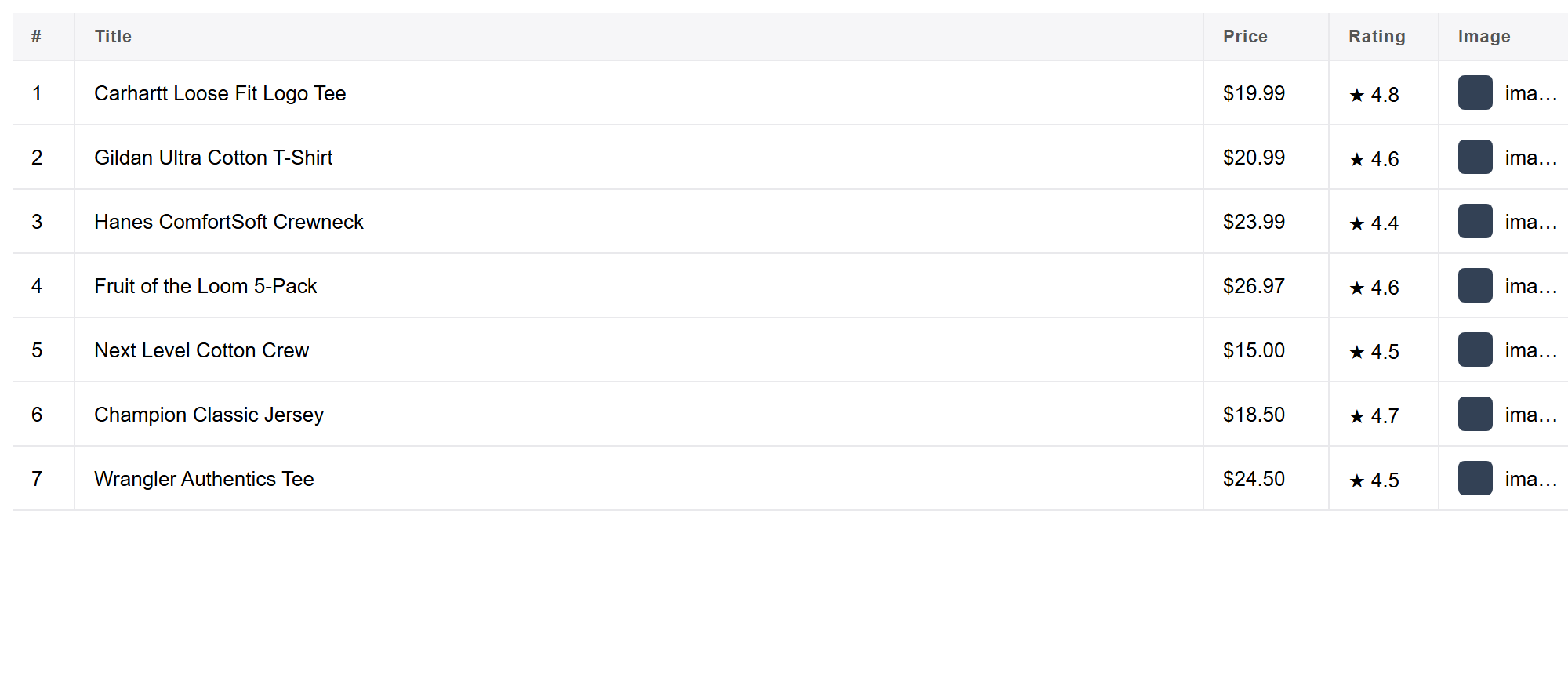
Open the page, click the Grabby icon, and choose Scrape List. Click Select the list and click anywhere inside the table — a single row or cell is enough. Grabby recognizes the whole table, reads its header row, and lines every cell up under the correct column, so the export keeps the same shape as the table on the page. You get a live preview of the rows and columns it found before you run anything. No CSS selectors, no XPath, and it makes no difference whether the table is a real <table> tag or a JavaScript-built grid — Grabby only cares what it looks like on screen.
2. Multi-page tables
If the table is split across numbered pages, or loads more rows as you scroll or click “Load more,” choose Pagination, Load more, or Auto-scroll before you run it, and set a page limit. Grabby walks through every page and stitches the rows into one continuous table with the same columns throughout, instead of a separate file per page.
3. Follow a link column into a detail page (optional)
Some tables have a “details,” “view,” or product-name column that links to a page with more fields. Point Grabby at that column and it opens each link to pull the extra fields, merging them back into the same row, so a summary table can become a much richer dataset.
4. Clean and export
Your table opens in an editable data grid. Rename headers, drop columns you don’t need, remove empty or duplicate rows, reorder columns, and sort — all before export. Then click Export to get CSV or Excel (TSV), export JSON or Markdown, or copy the whole thing and paste it straight into Google Sheets. Everything runs locally, so nothing is uploaded.
Troubleshooting
- A column is missing. Re-run Select the list and click a different cell in the table — the exact spot you click can change what Grabby treats as the boundary of the table. You can also add a column by hand afterward.
- Some cells came back blank. Usually lazy loading: content that only renders once it scrolls into view. Turn on Accurate mode so each row is scrolled into view before Grabby reads it.
- The table spans more pages than it captured. Confirm Pagination, Load more, or Auto-scroll is selected (not “Just this page”), and raise the page limit so it covers the full table.
- Header names look off, or two columns merged into one. This can happen with a multi-row or merged header in the source table. Rename or split the affected column in the editable table — a one-time fix if you save it as a recipe.
- Numbers won’t sum or sort correctly. They likely imported as text, which happens after almost any import when a cell carries a currency symbol, percent sign, or comma. In Excel, select the column and use Data → Text to Columns, or click the small warning flag and choose Convert to Number. In Google Sheets, use Format → Number, or a helper column with
=VALUE().
What people use this for
- Pulling a pricing or plan-comparison table off a competitor’s site.
- Archiving sports schedules, standings, or stats tables for analysis.
- Collecting spec tables across several product pages into one comparison sheet.
- Grabbing a financial or economic data table that updates regularly, saved as a recipe to re-run.
- Turning a multi-page leaderboard or rankings table into a single, sortable spreadsheet.
Frequently asked questions
Is it really free? Yes. Grabby is free while in early access, with every feature unlocked and no sign-up required.
Why not just copy-paste the table? Copy-paste often mangles merged cells, hidden columns, and formatting, and it only grabs whatever is currently on screen. Grabby captures the underlying row-and-column structure into clean fields, and can pull a table that spans several pages.
Why not use IMPORTHTML or Power Query for this? Both only read the static HTML a server returns. IMPORTHTML and Power Query’s From Web connector work on a plain, public table tag, and fail — blank, error, or stuck loading — the moment a site builds the table with JavaScript, needs a login, or splits it across pages. Grabby reads the table as your browser has already rendered it, so it works where the formula and the connector don’t.
Can it get a table that spans multiple pages? Yes. Choose Pagination, Load more, or Auto-scroll before you start, and Grabby stitches every page of the table into a single export with the same columns throughout.
Does it keep the table’s original columns, or dump everything into one field? It keeps the columns. When you point Grabby at a table, it reads the header row and lines every cell up under the right column, the same shape as the table on the page.
What can I export to? CSV, Excel (TSV), JSON, or Markdown, or copy the table straight into Google Sheets. Everything runs and saves locally.
What if the table has merged cells or a multi-row header? Grabby does its best to flatten merged headers into single column names automatically. If a couple of headers still land wrong, rename them by hand in the editable table before you export — it takes seconds and only needs doing once if you save the scrape as a recipe.
Some numbers came in as text and won’t sum — how do I fix that? Common after any import, not just scraping, because prices and percentages often carry symbols or commas. In Excel, select the column and use Data → Text to Columns, or click the small error flag and choose Convert to Number. In Google Sheets, select the column and use Format → Number, or add a helper column with =VALUE().
More no-code scraping guides
A table is just one shape of data. For the general walkthrough covering lists, cards, and search results too, see how to scrape any website to Excel, push the result into a live Google Sheet, or see the same method applied to a real site in scraping Amazon product data to Excel.