
How to scrape Google Maps to Excel (free): business leads, no code
Build a local-business lead list (names, ratings, reviews, phone numbers, websites and addresses) from any Google Maps search, then export it to Excel. Free, and no code.
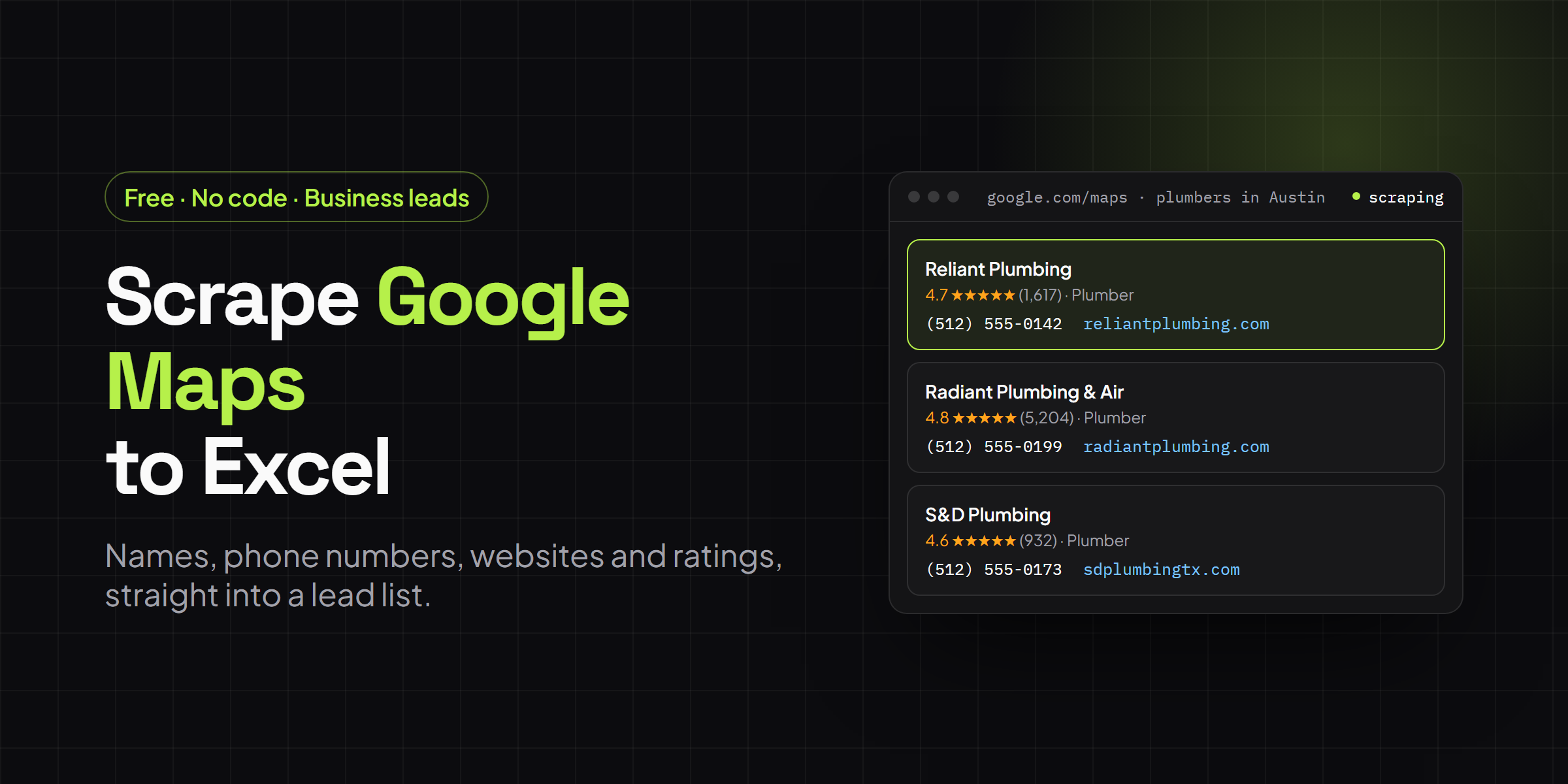
Google Maps is the biggest free directory of local businesses on the internet. Search any service in any city and you get a scrollable list of businesses (names, star ratings, review counts, categories, phone numbers, websites) for practically every plumber, dentist, agency or restaurant in the area. The catch is that all of it lives inside an interactive map, one card at a time, with no export button in sight.
This guide shows you how to scrape Google Maps into a clean Excel or CSV spreadsheet, for free and without writing any code, using the Grabby web scraper Chrome extension. It’s written for local SEO agencies building prospect lists, sales teams mapping a territory, franchise or site-selection researchers, and anyone doing competitive or market research on local businesses. By the end you’ll have one row per business — ready for outreach, a CRM import, or analysis — plus how to go further: beating Maps’ results cap, adding emails, and keeping a big multi-search list clean.
Is it legal to scrape Google Maps?
Business names, ratings, categories and phone numbers shown on Maps are public information, and collecting them for research or lead generation is widespread practice. But two separate things are true at once. First, Google’s terms of service restrict using automated means to access its services against the machine-readable rules it publishes, and the Google Maps additional terms separately prohibit mass-downloading or copying Maps content for use outside Google’s own services. Breaking a terms-of-service clause is a contract issue, not a criminal one, but Google can still suspend the account or block the IP address involved. If your use case needs to be fully within Google’s own rules (a production pipeline, an app, a large recurring pull), the Google Places API is the sanctioned route. Google’s own Maps Platform pricing puts Text Search and Nearby Search at about $32 per 1,000 calls once you pass a small free monthly allowance (more on cost below).
Second, once you have contact details, how you use them is separately regulated. If you plan to email or call the businesses you collect, follow the rules that apply to you: GDPR in the EU/UK generally lets you contact a business on the basis of “legitimate interest” for B2B outreach, provided you can show where the data came from, keep it relevant, and honor opt-outs quickly. CAN-SPAM in the US permits commercial email without prior consent but requires accurate sender information and a working unsubscribe link, honored within 10 business days.
Grabby only reads the Maps results already loaded in your own browser. It doesn’t automate clicks across the web, run in the cloud, or solve CAPTCHAs, so it behaves like a person browsing rather than a bot hammering Google’s servers. That’s a meaningfully gentler footprint, but it doesn’t rewrite Google’s terms, so keep searches reasonable and don’t try to pull an entire country overnight. (This is a how-to, not legal advice.)
What you’ll need
- Google Chrome, Microsoft Edge, or Brave.
- The free Grabby extension. No account, no API key, no proxies.
- A Google Maps search for the businesses you want, for example plumbers in your target city.
Four ways to get Google Maps data into a spreadsheet
Before diving in, here’s how the realistic options actually compare:
| Approach | Cost | Setup & effort | Best for |
|---|---|---|---|
| No-code browser tool (Grabby) | Free | Minutes: click, scrape, export | Quick prospect lists, one-off or occasional pulls, non-developers |
| Custom script (Python + Selenium/Playwright) | Free tool, but your time, plus proxies if you scale up | Hours to build, ongoing upkeep as Maps’ markup changes | Developers who need a repeatable pipeline and can maintain it |
| Google Places API (official) | Pay per call: Text/Nearby Search from about $32 per 1,000 calls (first 100K/month). Requesting ratings or hours moves you to a pricier tier, and a small monthly free allowance applies | API key, billing account, and code to call and parse JSON | Production apps, large recurring pulls, anyone who needs Google’s blessing |
| Paid Maps lead-gen / scraping services | Subscription or per-record credits | Little setup, but ongoing cost and vendor dependence | Teams that want an already-enriched list hands-off and have budget for it |
Grabby is the fastest way to a spreadsheet without spending anything or touching a line of code, which is what the rest of this guide walks through.
Step 1: Install Grabby (free)
Add Grabby to your browser from the Chrome Web Store. Nothing to sign up for, nothing to configure. Everything here works on the free plan.
Step 2: Search Google Maps
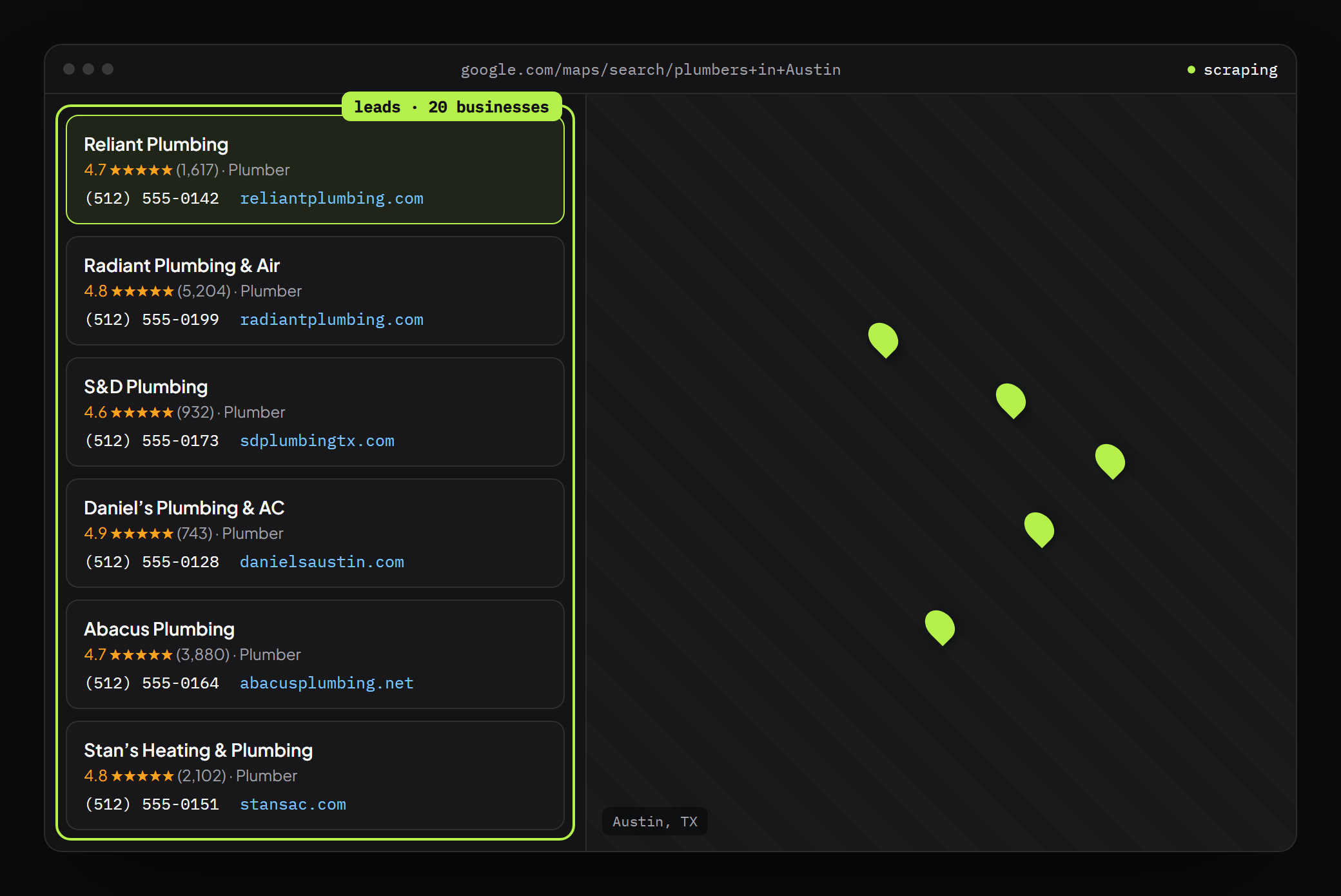
Open google.com/maps and search for a service and a location, for example plumbers in Austin, TX. Apply any filters worth narrowing on first (rating, hours, price) so you’re not exporting rows you’ll just delete later. Maps shows a scrollable list of businesses on the left, and that results panel is what you are about to turn into a spreadsheet.
Step 3: Run the Google Maps template
Open Grabby’s side panel and choose Scrape List. On Google Maps you’ll see a one-click template made for the results panel, so you can skip selecting anything. Click Run and Grabby captures each business with the fields that matter for a lead list:
- Business name
- Rating and review count
- Category (plumber, dentist, and so on)
- Phone number
- Website
- The Google Maps link to each place
No template on your version, or scraping a different Maps view? Click Select the list and click any one business card instead, and Grabby highlights the whole results list for you.
Install Grabby free and build your lead list
Step 4: Scroll to load more results
Google Maps loads businesses as you scroll the results panel rather than all at once, roughly twenty at a time. To collect a longer list, scroll the panel down so more businesses load, then run the scrape again to capture the fuller set. Keep in mind that a single Maps search tends to stop at around 120 results no matter how much further you scroll — that’s a deliberate cap, not something you can scroll past. The fix, and how to dedupe what you get back, is in the advanced section below.
Step 5: Pull more from each business’s own website
Maps gives you the essentials, but a business’s own website usually has more: a tagline, a service list, a second phone line, social links. Point Grabby’s detail-page scraping at the website column and it opens each site in turn, letting you pull whatever extra fields you want in as new columns. This is the same “follow a link column” feature you’d use to open each Maps profile page for a full address, too.
Add an email for each business
Maps rarely lists email addresses directly, which is where Grabby’s dedicated email extractor comes in. Run it on that same website column and it visits each site and pulls the contact emails it finds, then merges them back into the matching row. That turns a directory of businesses into a contactable outreach list.
Step 6: Clean up your lead list
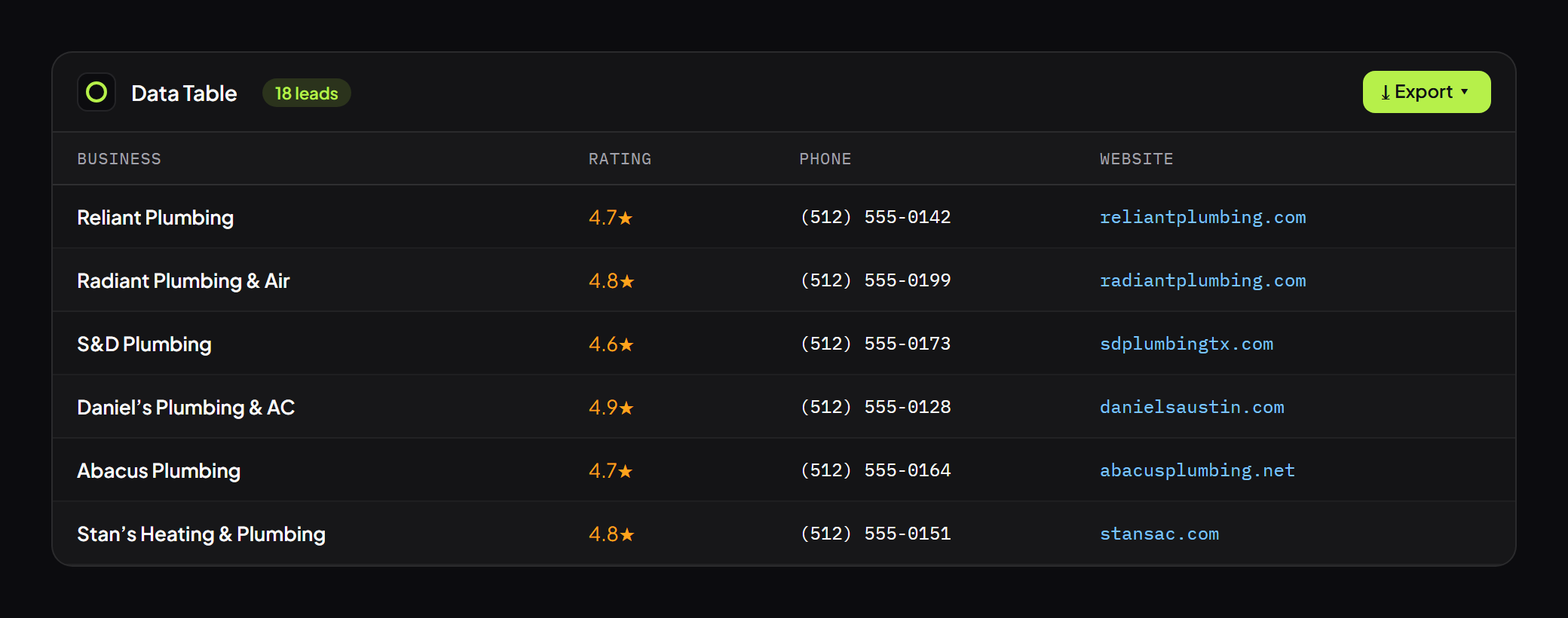
Your results open in an editable data table, one row per business. This is where you turn raw results into a usable lead list: remove duplicate or empty rows and columns, drop businesses with no phone or website if you only want contactable leads, rename columns, hide the ones you don’t need, and sort by rating or review count to prioritize. It’s all non-destructive, so tidy the list until it’s exactly what you need.
Step 7: Export to Excel, CSV, or JSON
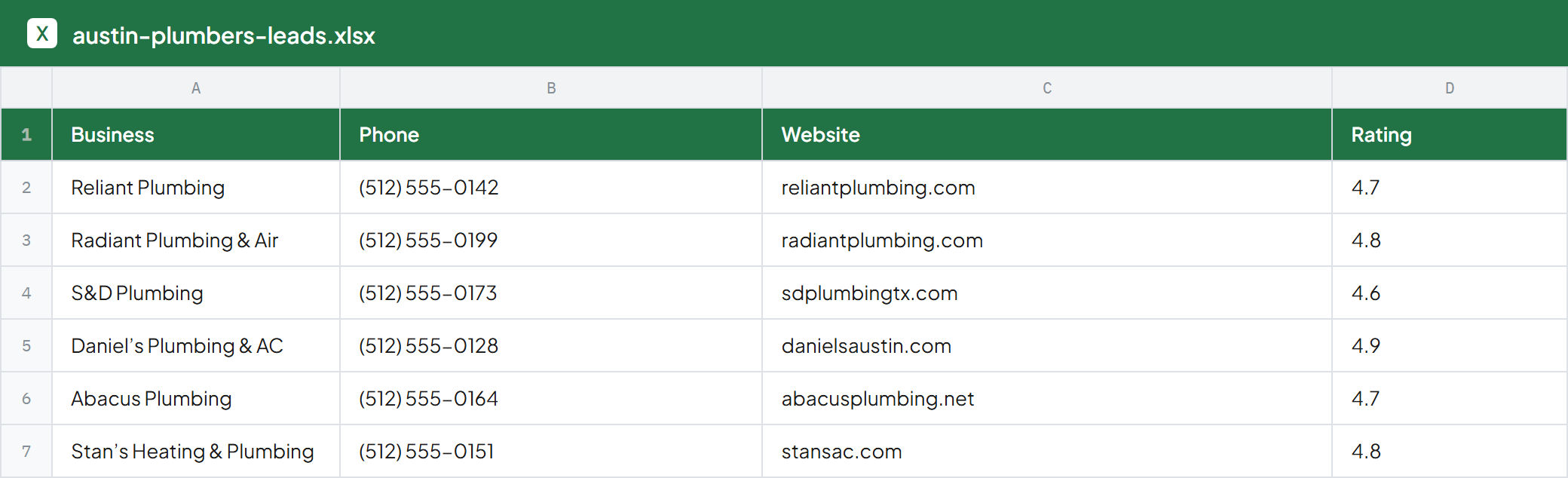
Click Export and choose your format: CSV or Excel to open directly, JSON for another tool, or Markdown for a quick doc. You can also copy the whole table and paste it straight into Google Sheets or your CRM import. Everything is saved locally, so your lead list is yours and nothing is uploaded anywhere.
Going further: bigger, cleaner, richer lists
Beat the results cap. Since a single Maps search plateaus around 120 listings, the way to cover a whole city is to search smaller areas instead of one big one, whether by neighborhood, ZIP code, or suburb, and run the same scrape on each. Every individual search stays under the cap, and together they cover far more ground than one citywide pull ever could.
Dedupe across searches. Adjacent-area searches will inevitably overlap at their edges. Once you’ve merged the exports (paste them into one table, or stack the CSVs), use the editable table’s duplicate-row removal — matching on the Maps link or on name-plus-phone — to collapse the repeats into a single clean list.
Enrich as you go. Run the email extractor and detail-page scraping on the merged list once, rather than on each individual search, so you’re not repeating that work per area.
Clean up phone formats. Businesses list numbers inconsistently: (512) 555-0100 versus 512-555-0100 versus +1 512 555 0100. Standardize the column before you import into a CRM or dialer. It’ll save you an import headache later.
Use cases
- Local SEO and agency prospecting. Build a call list of businesses in a niche and area, sorted by review count or rating gaps worth pitching.
- Sales territory mapping. Turn a category-and-city search into a structured account list for a rep to work.
- Franchise and site-selection research. Gauge competitor density and rating distribution before committing to a location.
- Market and competitive research. Compare category coverage, pricing signals, and review volume across neighborhoods.
Troubleshooting
- Only a few businesses captured? Scroll the Maps results panel to load more, then run the scrape again.
- Missing phone or website? Not every business lists both on Maps. Filter those rows out after export if you only want complete leads.
- Template not showing? Use Select the list and click one business card to grab the list manually.
- Need more than one city’s worth? Run separate searches per area and combine the exported files, then dedupe.
Frequently asked questions
Is it really free? Yes. Grabby is free while in early access, with every feature unlocked and no sign-up.
Is it legal to scrape Google Maps? Collecting publicly visible business info for research or lead generation is common practice, but Google’s terms of service prohibit automated scraping, so breaking them is a contract issue that can get your IP or account blocked rather than a criminal one. For guaranteed compliance at scale, use the official Google Places API instead. (Not legal advice.)
Can I get emails from Google Maps? Maps itself rarely shows emails, but Grabby captures each business’s website in the results, so you can run the built-in email extractor on that column and it visits every site to pull the contact emails, merged back into your list.
Why does Maps only show around 120 results, and how do I get more? Google caps most map searches at roughly 120 listings no matter how far you scroll. To go beyond that, run several narrower searches by neighborhood or suburb instead of one citywide search, then merge and dedupe the exports.
How does this compare to the Google Places API? The Places API is the official, terms-compliant route, but it’s billed per call. Text Search and Nearby Search start around $32 per 1,000 calls, and asking for fields like ratings or hours moves you to a pricier tier. Grabby reads the page you’re already looking at for free, which is faster for a one-off or occasional lead list but isn’t built for large-scale, ongoing pipelines.
Can I export Google Maps data to Google Sheets? Yes. Copy the table and paste it straight into a sheet, or export CSV, Excel or JSON and import it.
Does this work for any business type? Yes. Restaurants, dentists, gyms, agencies, contractors, anything you can search for on Maps.
Will I get blocked for doing this? Grabby doesn’t automate clicks across the web or solve CAPTCHAs. It reads the Maps results already loaded in your own browser, at your own pace. That’s a much gentler footprint than a bot hammering Google’s servers, but keep individual searches reasonable and spread large jobs across several sessions.
Build a fuller local lead list
Google Maps is one of the highest-value sources, but a fuller list usually pairs it with more. See our guide to scraping Yelp to Excel for a second angle on the same businesses, scraping any business directory for leads, and extracting emails from a website for lists you’ve already built elsewhere.
That’s a local-business lead list in a spreadsheet, free and without code. Install Grabby and turn any Google Maps search into Excel.