
How to scrape eBay listings to Excel (free, no code)
You have an eBay search full of the listings you want to track. Here's the free, no-code way to turn it — and sold comps — into a clean Excel or CSV spreadsheet.
You’ve run an eBay search — a product to resell, a collectible, a parts lot, a category you buy into regularly — and now you want it in a spreadsheet: titles, prices, bids, shipping, condition, and the link to every listing. Copying cards by hand is slow, and building a scraper for what is usually a sourcing or pricing task is a lot of overhead. There’s a faster, free way.
This guide covers how to scrape eBay listings, and sold comps, into Excel, CSV or Google Sheets end to end: what eBay’s User Agreement actually says about scraping, how the no-code, hand-coded, official-API, and paid-service approaches compare, and a detailed step-by-step using the free Grabby web scraper Chrome extension — including pagination, pulling extra fields from each listing page, and building a price-tracking habit around it.
Is it legal to scrape eBay?
eBay’s User Agreement bars “any robot, spider, scraper, data mining tools, data gathering and extraction tools, or other automated means” from accessing the site without eBay’s prior written permission — a broad clause that, taken literally, covers exactly the kind of scraping this guide describes. eBay tightened its User Agreement again in January 2026, with the change taking effect that February. The headline target is AI shopping agents and automated checkout — “buy-for-me” bots that browse and purchase without a human reviewing the order — rather than someone manually pulling a search into a spreadsheet, but the underlying no-automated-access clause is the same one that has always applied to scraping.
As with most sites, US courts have held that reading data a page already shows any visitor isn’t, by itself, a computer-hacking crime under the Computer Fraud and Abuse Act (the Ninth Circuit’s hiQ Labs v. LinkedIn ruling is the leading case) — but violating a site’s terms is still a contract matter, and eBay can act on it with rate limits, CAPTCHAs, or account restrictions. Because a Grabby run reads pages you’ve opened yourself, at a human pace, in your own signed-in session, it behaves like browsing rather than like a bot farm. Still: keep runs modest, don’t automate bidding or checkout, and don’t scrape other users’ personal account details. This is general information, not legal advice — read eBay’s current User Agreement before scraping at any real volume.
Four ways to get eBay data into a spreadsheet
As with any marketplace, there’s more than one route from an eBay search to a usable spreadsheet. Which one is worth it depends on volume, whether you need sold data, and whether you can code.
| Approach | Best for | Effort | Cost | Watch-outs |
|---|---|---|---|---|
| No-code tool (Grabby) | One-off or repeated manual research, including sold comps | Minutes — point, click, export | Free | No scheduling or CAPTCHA-solving yet; you drive the browser |
| Custom script (Python, BeautifulSoup, Scrapy) | Developers with custom logic or a large, repeated job | Hours to days, plus upkeep | Free tool, but your time — plus proxies at scale | Sold listings sit behind a login wall, so a script needs to manage an authenticated session, not just fetch pages |
| eBay Browse API | Developers pulling structured, active-listing data | Register a free dev account, get OAuth keys, integrate | Free tier: 5,000 calls/day per app | Active listings only — sold/completed data needs the restricted Marketplace Insights API, which isn’t open to most developers |
| Paid scraping / proxy service | High-volume, ongoing production pipelines | Low — call their API | Usage-based, recurring | Ongoing bill; you still build the ingestion and cleanup pipeline yourself |
The Browse API is genuinely good for active-listing lookups if you can code and don’t need sold prices. But for the sold-comps workflow resellers actually want — and for anyone who’d rather not write and maintain a script — the no-code route below covers it in a couple of minutes.
What you’ll need
- Google Chrome, Microsoft Edge, or Brave.
- The free Grabby extension — no account, no proxies, runs in your browser.
- An eBay search results page for whatever you want to track. If you want sold prices, sign into your eBay account first.
Step 1: Install Grabby (free)
Add Grabby to your browser from the Chrome Web Store. Nothing to sign up for, nothing to configure. Everything in this guide works on the free plan.
Step 2: Open your eBay search and filter first
Search eBay for what you want and apply filters before you scrape anything: Buy It Now vs. Auction, condition (New, Used, Open box, For parts), price range, item location, or Free Shipping. If you want pricing history rather than active listings, check Sold Items or Completed listings under the buying-format filters — note that eBay now requires you to be signed in to see sold results, so log in first. It’s also worth bumping eBay’s own items-per-page setting up to 120 or 240 (the gear icon near the results count) before you scrape, so Grabby has fewer pages to walk. Scroll down once so the first page of results has fully loaded.
Step 3: Select the listings
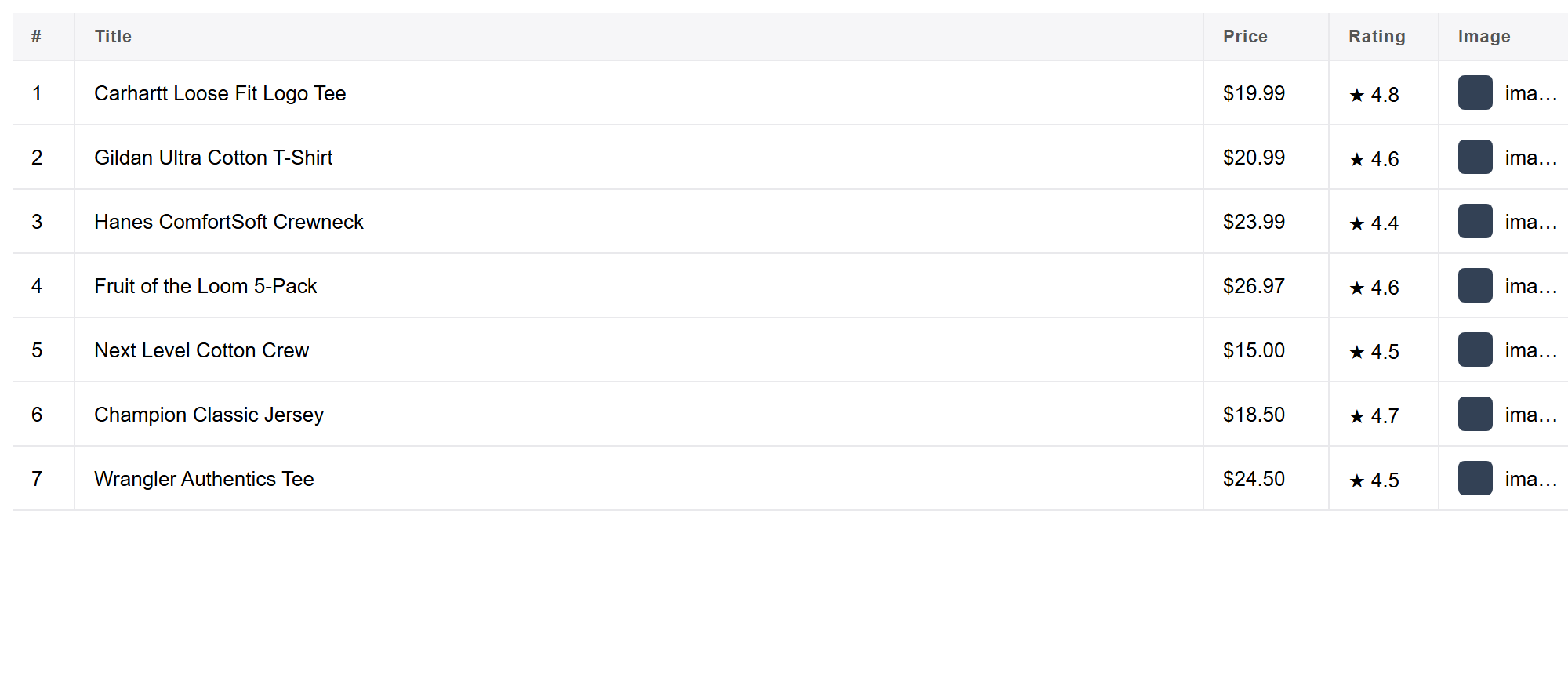
Click the Grabby icon, choose Scrape List, then Select the list and click any one listing card. Grabby highlights the whole set of results and one click grabs them all — no CSS selectors, no XPath. It detects the columns for you: title, price (or current bid and bid count for auctions), Buy It Now, shipping cost, condition, item location, image, and link. Sponsored listings share the same card layout as organic ones, so you may see a few mixed in — easy to filter out in the table afterward.
Step 4: Grab every page
eBay spreads results across many pages, defaulting to 60 listings per page (up to 240 if you raised it in Step 2), and it has been rolling out a “Load more” button on some layouts alongside the classic numbered pages. Either way, before you run it, choose Pagination and point at eBay’s next-page control once, or use Auto-scroll if you land on a load-more layout. Set a sensible maximum, hit Start, and watch the row counter climb as Grabby collects every listing.
Follow listing links for the fields that only live on the item page
The search grid doesn’t show everything. Give Grabby the column of listing links and it will open each one and pull extra fields — full item specifics (brand, size, color, UPC or MPN), the seller’s name and feedback score, return policy, and watcher count — then merge them back into the matching row. That’s the difference between a list of titles and a dataset you can actually price against.
Step 5: Clean the data
Your results open in an editable table. Dedupe by the item ID in each listing’s /itm/ link rather than by title, since near-identical titles are common. Normalize shipping text so “Free” becomes a numeric 0 instead of a string, and consider splitting auctions from fixed-price listings into their own column so you’re not averaging a current bid against a Buy It Now price. Remove empty or duplicate rows, rename headers, and hide anything you don’t need, all before export.
Step 6: Export to Excel, CSV, JSON, or Google Sheets
Click Export and choose your format: CSV or Excel to open directly, JSON if the data is headed somewhere else, or copy the whole table and paste it straight into Google Sheets. Everything is saved locally — nothing is uploaded anywhere.
Advanced: sold comps, deduping, and tracking prices over time
- Sold comps are the differentiator. Since eBay’s Marketplace Insights API (the one that returns sold-item data) is a restricted, business-only API that most individual developers can’t get approved for, and the signed-out web view of sold listings was removed in 2026, a signed-in browser scrape is one of the few practical ways left for an individual to pull sold comps at all. Sign in, filter to Sold Items, and scrape as normal.
- Dedupe by item ID, parsed from the numeric portion of the listing URL — it’s stable even when titles vary slightly between a search result and its own page.
- Compare total cost, not just price. A cheaper item with expensive shipping can lose to a pricier one with free shipping — keep price and shipping as separate numeric columns so you can sum them.
- Set a refresh cadence. For live price tracking or sourcing alerts, re-run the same search on a schedule you keep yourself — daily for fast-moving categories, weekly otherwise — and export each run with a dated filename so you can compare trends over time. There’s no built-in scheduler yet, but a saved selection takes under a minute to re-run.
What people use this for
- Reseller sourcing and arbitrage. Shortlist listings priced below recent sold comps before buying.
- Pricing your own listings. Pull sold comps for an item you’re about to list and price it competitively.
- Tracking a specific collectible or drop. Watch prices on a card, sneaker, or part number over weeks.
- Competitor seller monitoring. Track another seller’s active listings and pricing.
- Building a want-list tracker. Keep a running spreadsheet of items you’re watching, refreshed on your own schedule.
Frequently asked questions
Is it really free? Yes. Grabby is free while in early access, with every feature unlocked and no sign-up.
What eBay fields can I scrape? Whatever the results page shows: title, price or current bid and bid count, Buy It Now, shipping cost, condition, item location, the thumbnail, and the link to each listing.
Can I scrape sold or completed listings for pricing comps? Yes, but eBay now requires you to be signed in to view Sold and Completed results — the signed-out view was removed in 2026. Sign into eBay first, apply the Sold Items filter, then scrape as normal.
Can I scrape every page of results? Yes. Choose Pagination and point at eBay’s next-page control once, or use Auto-scroll for infinite results, and Grabby walks every page.
Does eBay block this? Grabby reads the page you already loaded in your normal, signed-in browser, so it behaves like a person browsing rather than a bot. Very large, rapid runs can still trip rate limits, so keep page counts sensible.
Is it legal to scrape eBay? eBay’s User Agreement technically prohibits automated data collection without permission, and it was tightened again in 2026, mainly to target AI shopping and checkout bots. Reading publicly visible listings for personal research carries realistic risk of rate-limiting, not criminal liability, if you keep it reasonable. Not legal advice.
Should I use the eBay Browse API instead? It’s a solid option for active listings if you can code, with a free tier of 5,000 calls a day. It won’t get you sold or completed listings, though — that data sits behind eBay’s restricted Marketplace Insights API, which isn’t open to most developers.
Can I export to Google Sheets? Yes. Copy the table and paste it into a sheet, or export CSV or Excel and import it.
Scrape other marketplaces the same way
The same select, paginate, clean, and export flow works on any store. See our guide to scraping Amazon product data to Excel, the general version for any website to Excel, or scraping straight into Google Sheets.
That’s your eBay data — active listings or sold comps — in a spreadsheet, free and without code. Install Grabby and turn any eBay search into Excel in a couple of minutes.